Make a template
A template is an ordinary Figma component that stands for one page. Pagestream makes every page of your document an instance of it, so a change to the template reaches every page.
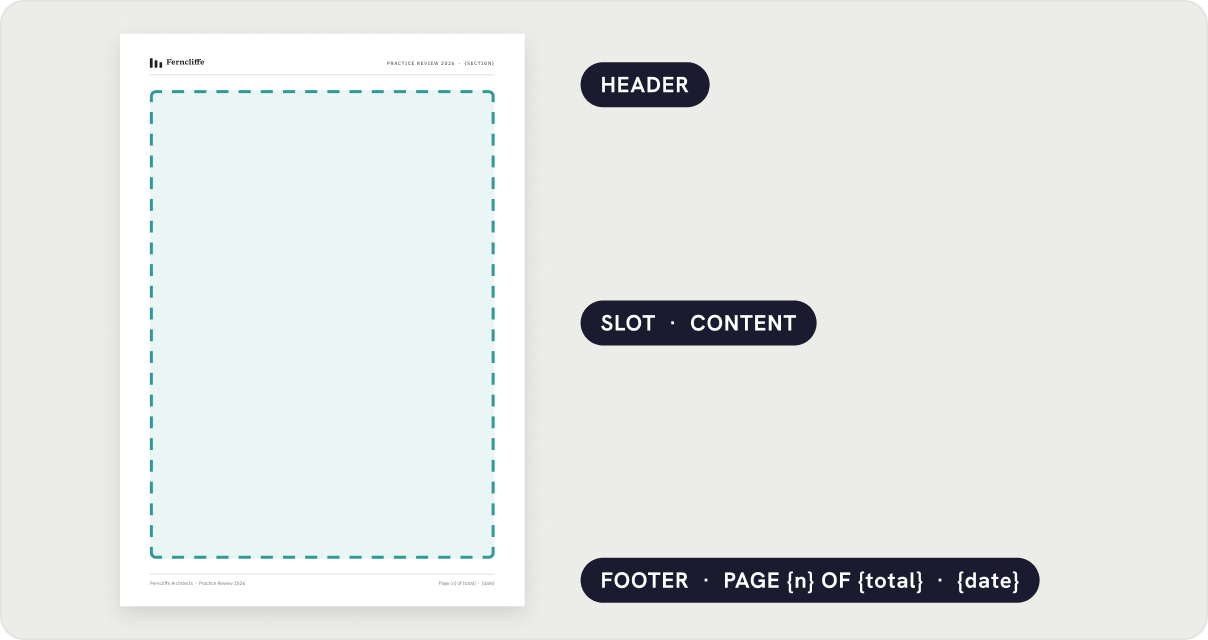
What the component needs
- A fixed page size. A4, Letter, a slide, anything. The component is the page.
- A vertical auto layout, so the header, the content area and the footer stack top to bottom.
- A content area: a Figma Slot, set to vertical auto layout, filling the height between header and footer.
- Optionally, text layers with tokens for page numbers, the date and a running head.
Step by step
- Create a frame at your page size and turn it into a component (Cmd/Ctrl Alt K). Name it however you like; "Page / A4" is a good habit.
- Give it vertical auto layout with the margins you want as padding.
- Add your header at the top: a logo, a title, a rule. Any layers, any components.
- Add a frame between header and footer, make it a Slot (select it inside the main component and choose "Make slot" in the component property panel), set it to vertical auto layout, width Fill, height Fill. Name it "Content".
- Add your footer at the bottom. Put "Page {n} of {total}" in a text layer if you want numbers.
Tokens
Any text layer in the template that contains a token is filled on every page and kept up to date on every pass.
| Token | Becomes | Example |
|---|---|---|
{n} or {page} | The page number | Page 3 |
{total} | The page count | of 12 |
{date} | The day the document was last flowed | 13 October 2026 |
{section} | The heading in effect at the top of the page | What we changed in the studio |
Tokens can share a layer with other text: "Page {n} of {total} · {date}" is one layer. The text style of the layer is kept.
Without slots
If your plan does not have Slots yet, name the content frame "Content" instead. Pagestream still flows into it, but pages become detached copies of the template, so later changes to the header or footer do not propagate.
Several templates
Keep as many templates as you like on a Figma page. The panel lists every component that contains a slot. One document uses one template, chosen when you press Flow. A cover with a different layout is best kept as a separate frame outside the document.